OpenTelemetry gives you a common way to record distributed execution. AI applications add their own questions: which model call made the decision, which tool returned the unexpected data, and how did the agent move from one step to the next? Local trace inspection is the bridge between raw telemetry and those answers.
1. Identify the trace boundaries
Before inspecting individual spans, determine where the agent run starts and ends. A user request, workflow execution, or job ID is often the best trace boundary. If the boundary is wrong, you may accidentally compare a tool call from one run with a model call from another.
- Use a stable run or request identifier.
- Confirm the trace includes the model, tool, and orchestration spans you expect.
- Keep the original timestamp and environment information with the exported trace.
2. Read spans as a causal sequence
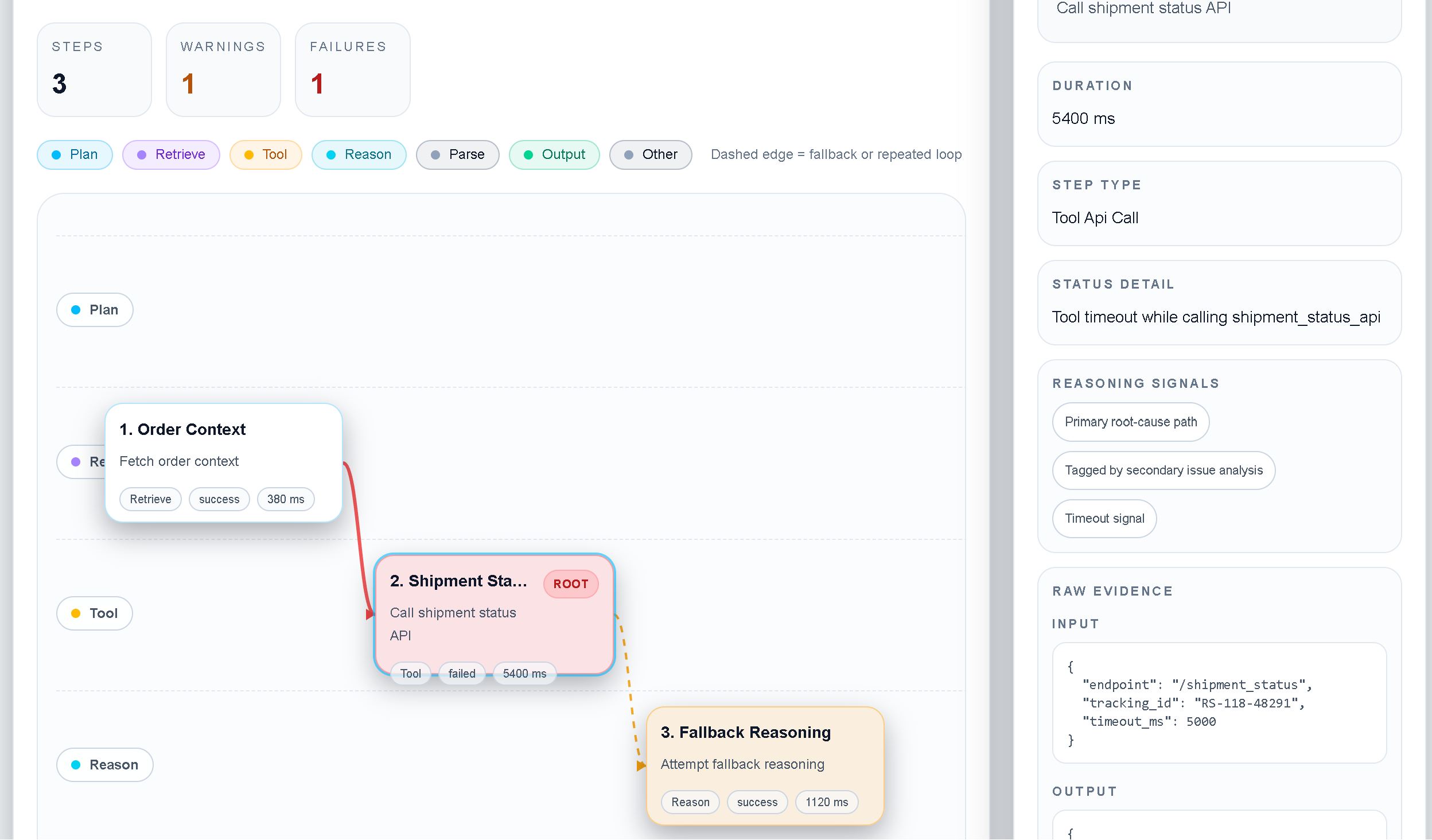
Start at the root span and follow child spans in time order. The goal is not to memorize every attribute; it is to understand the causal sequence. A model span may produce a tool call, the tool span may return a result, and a later model span may decide whether the result is trustworthy.
3. Look for the highest-signal attributes
Different instrumentation libraries use different attribute names, but the debugging questions are consistent. Focus on the fields that explain inputs, outputs, timing, and status.
Identity
Trace ID, span ID, parent span, run ID, model name, tool name, and environment.
Timing
Start time, duration, queue or wait time, retries, and timeout information.
Behavior
Prompt or input references, tool arguments, returned status, output summary, and error details.
4. Find the first slow or incorrect span
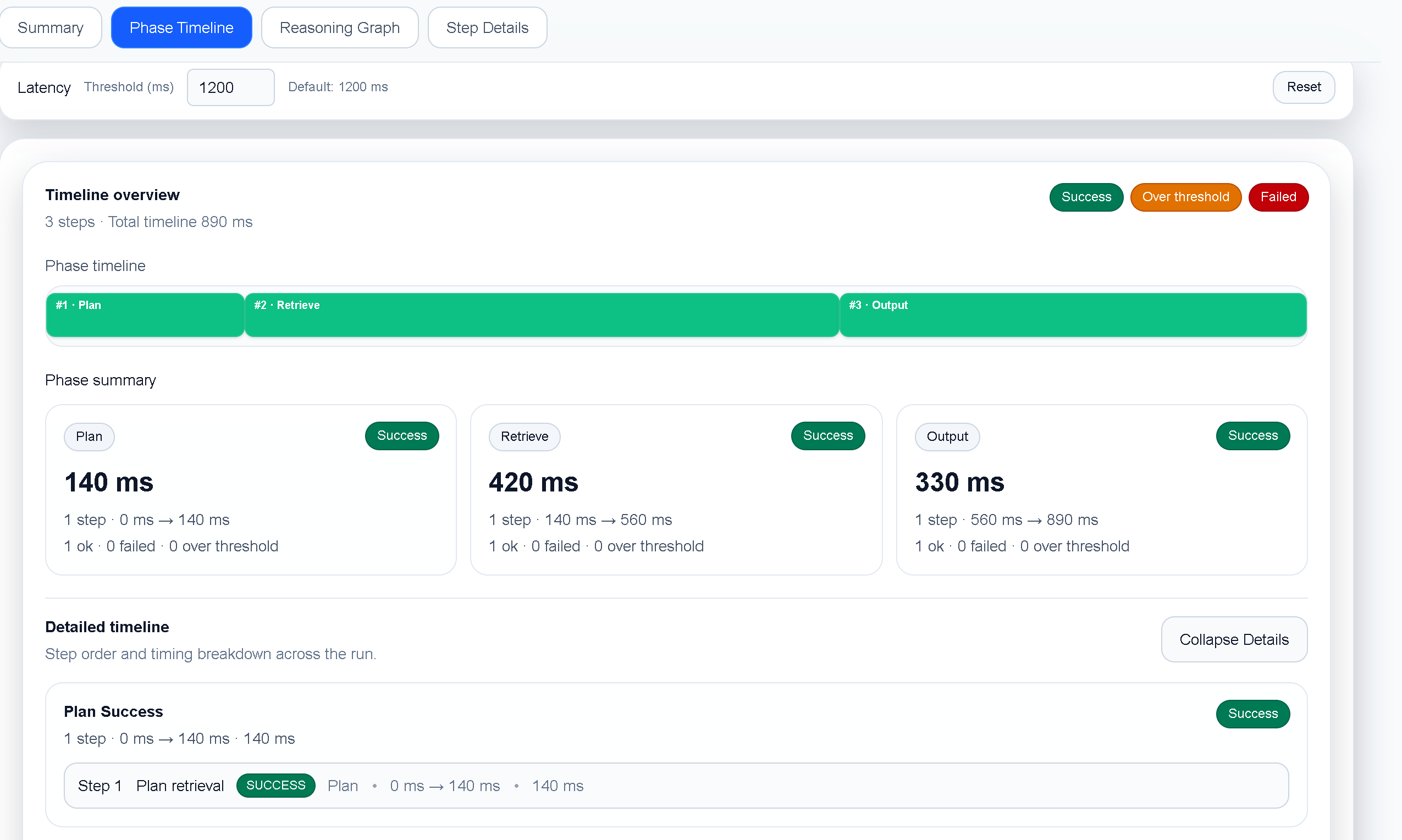
Use the timeline to identify the first span that is materially different from a healthy run. A long model span may indicate a prompt or provider issue; a long tool span may indicate an external dependency; a short span with a bad result may indicate a contract or parsing problem.
5. Check the decision after each tool result
Many agent bugs are not in the tool call itself. The tool returns a technically valid response, but the next model step misreads it, ignores an error field, or treats an empty result as success. Follow the parent-child relationship and inspect the first decision after the tool result.
6. Compare traces before changing instrumentation
If a trace is confusing, first compare it with a known-good run. Differences in ordering, span duration, tool arguments, or missing children can reveal whether the issue is application behavior or incomplete instrumentation. Only then decide whether you need to add attributes, events, or a new span boundary.
- Choose one healthy and one problematic trace for the same task.
- Compare root metadata and the first few child spans.
- Locate the first missing, reordered, slow, or semantically different span.
- Document the smallest instrumentation or application change that would make the behavior unambiguous.
7. Keep sensitive trace data local when possible
AI traces can contain prompts, retrieved documents, tool arguments, and user data. Local analysis reduces the number of systems that need access to that content. Apply your organization’s retention and redaction rules before exporting or sharing any trace.