Help with TraceProbe
Start with the FAQ below for help with downloading TraceProbe, starting your trial, upgrading to Pro, activating your license, managing devices, and handling billing through Paddle.
Getting Started
How do I start the free trial?
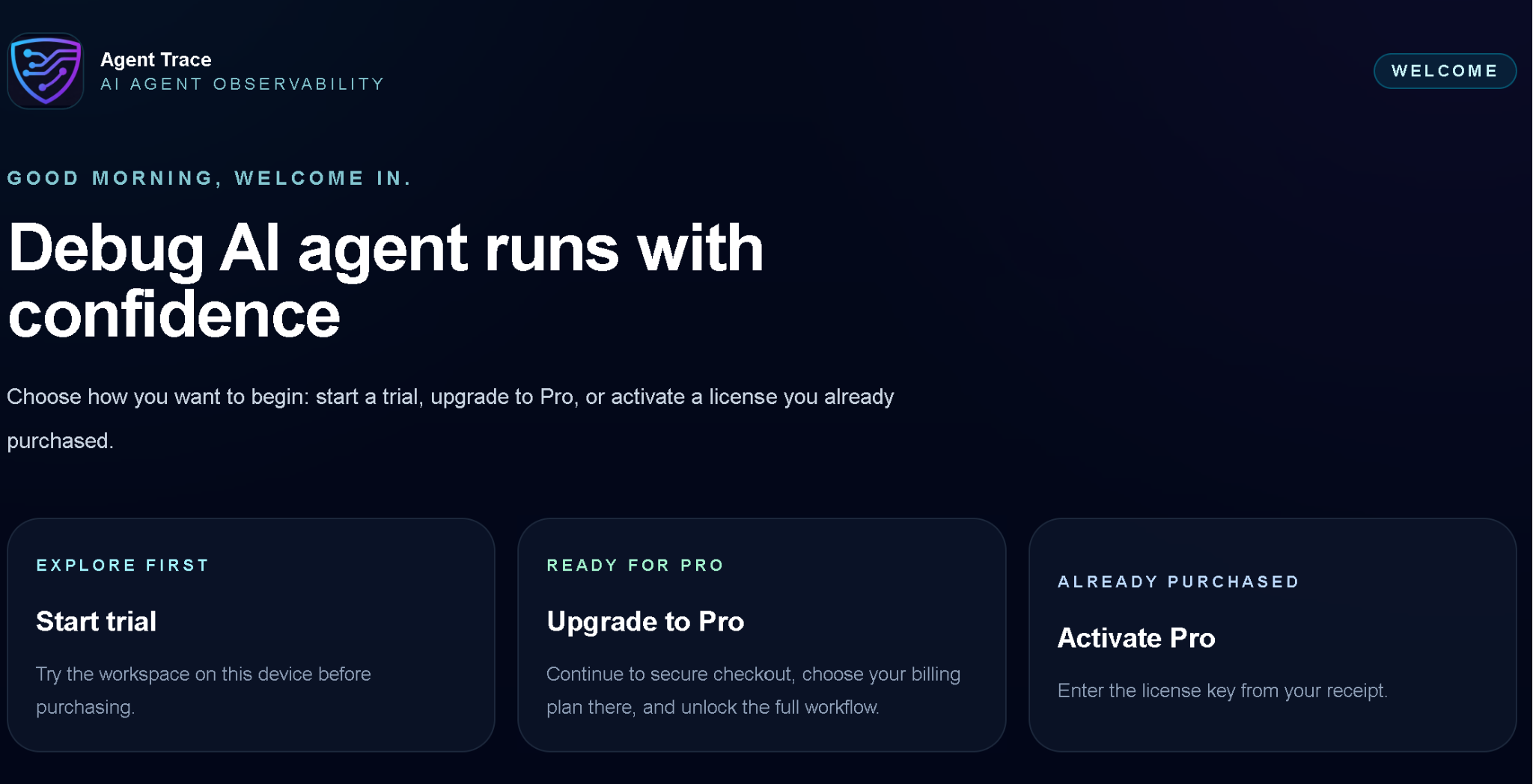
Install TraceProbe from Microsoft Store. The 1-week free trial starts automatically inside the app, so you do not need to create an account or complete checkout before trying the product.
- Open the TraceProbe listing in Microsoft Store from this website.
- Select Get or Install.
- Open TraceProbe.
- Open the app and choose Continue to TraceProbe; no payment information is required.
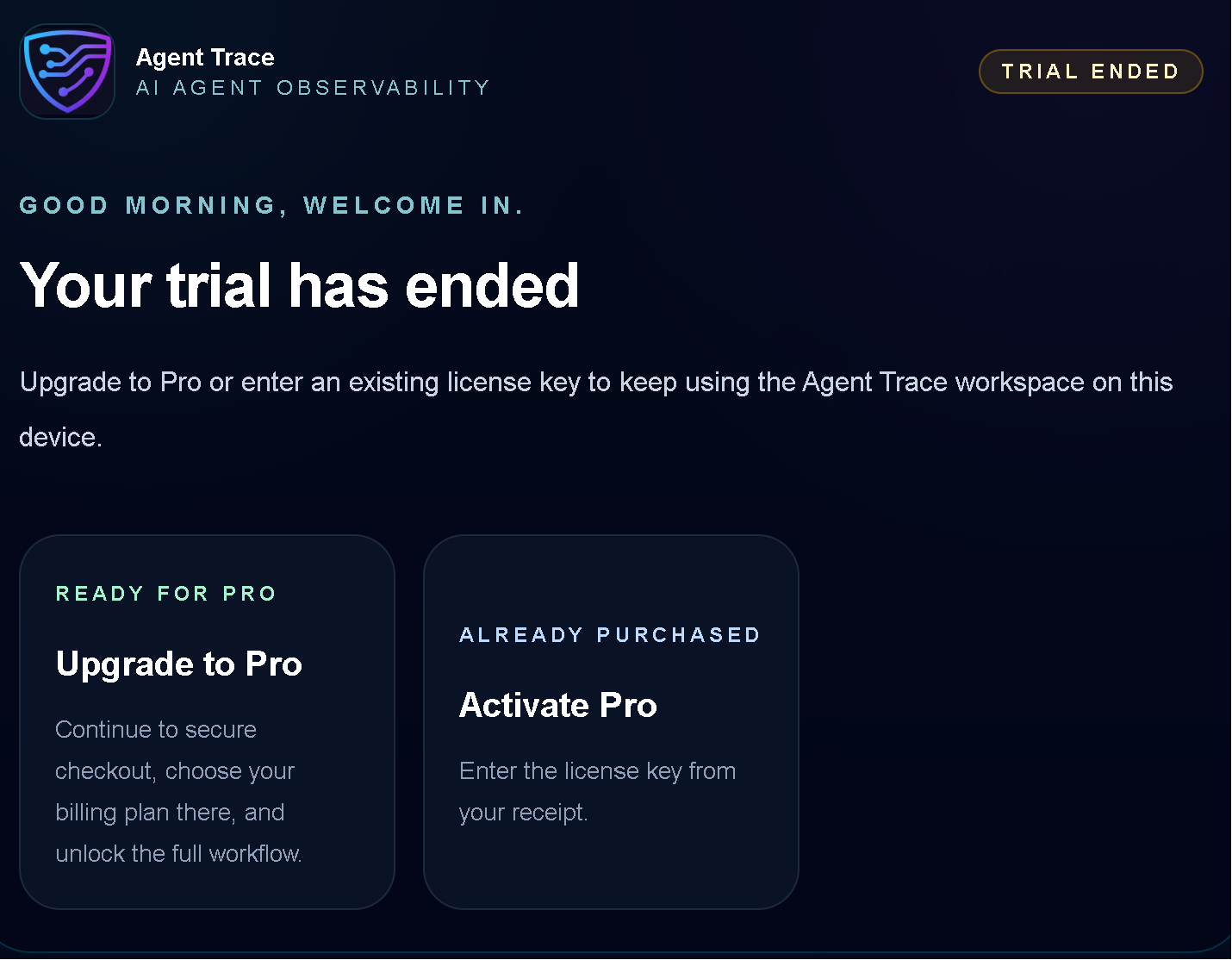
After the trial, you can upgrade to Pro and choose either the monthly or annual plan.
How do I upgrade to Pro?
You can upgrade to Pro from the license flow, trial reminder, or Manage License area inside the app.
- Open TraceProbe.
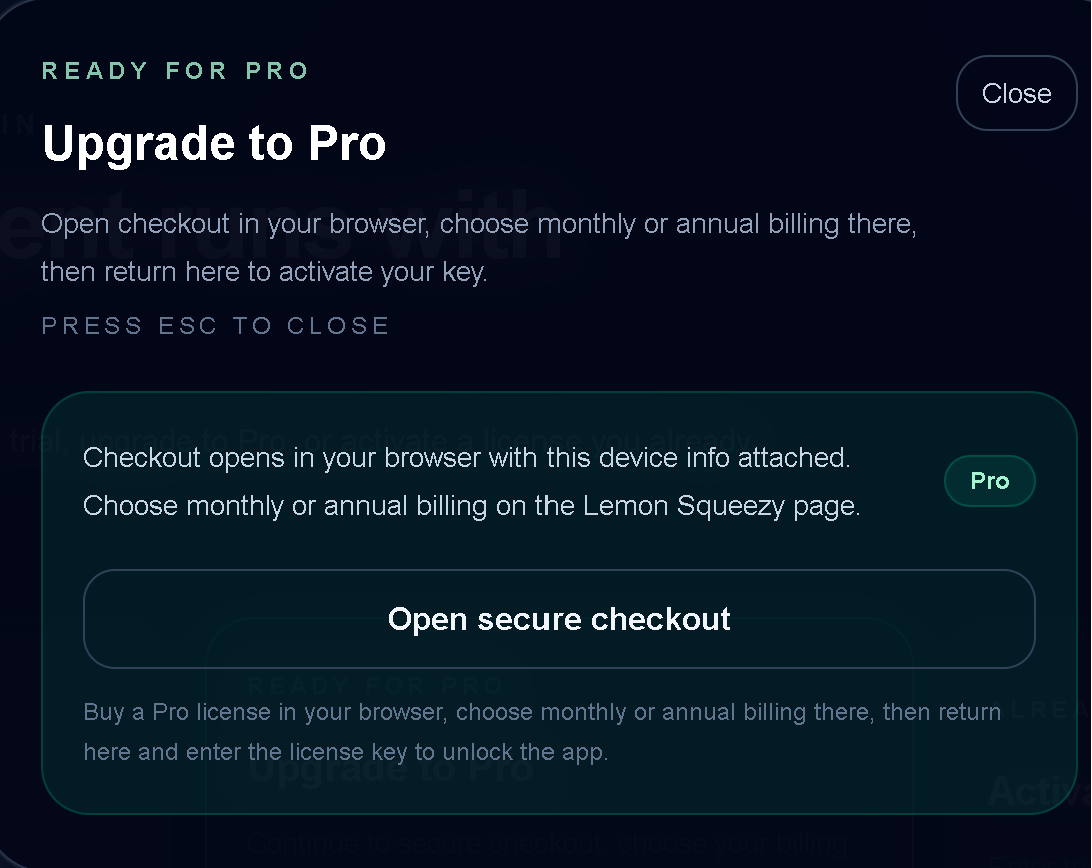
- Choose Upgrade to Pro.
- Open secure checkout in your browser through Paddle.
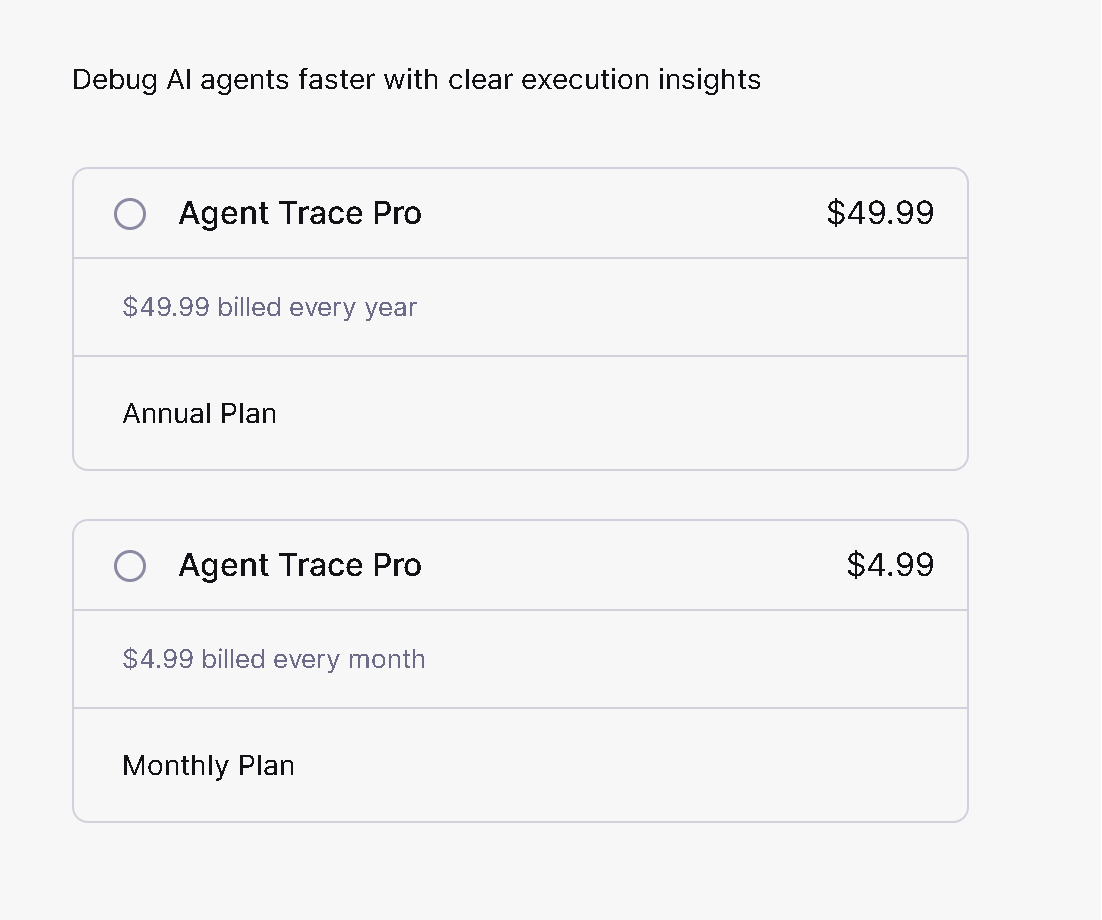
- Choose the monthly or annual plan.
- Copy the license key from the success page or purchase email.
- Return to TraceProbe, choose Activate Pro, paste the key, and click Verify license.
If the app does not unlock immediately, close and reopen TraceProbe once, then try verifying again.
Where do I find my license key?
Your license key is shown on the hosted success page after checkout and can also be delivered to your purchase email.
If you cannot find it, check your spam folder and search your inbox for the purchase email. If you still cannot locate it, contact support with the email used for purchase.
How do I install TraceProbe from Microsoft Store?
TraceProbe is distributed through Microsoft Store for a trusted Windows installation and Store-managed updates.
- Open the official TraceProbe Store listing from the website.
- Select Get or Install.
- After installation, open TraceProbe from the Start menu or Microsoft Store.
If Microsoft Store reports an installation or update problem, open Library in Microsoft Store, select Get updates, and try again.
License Activation
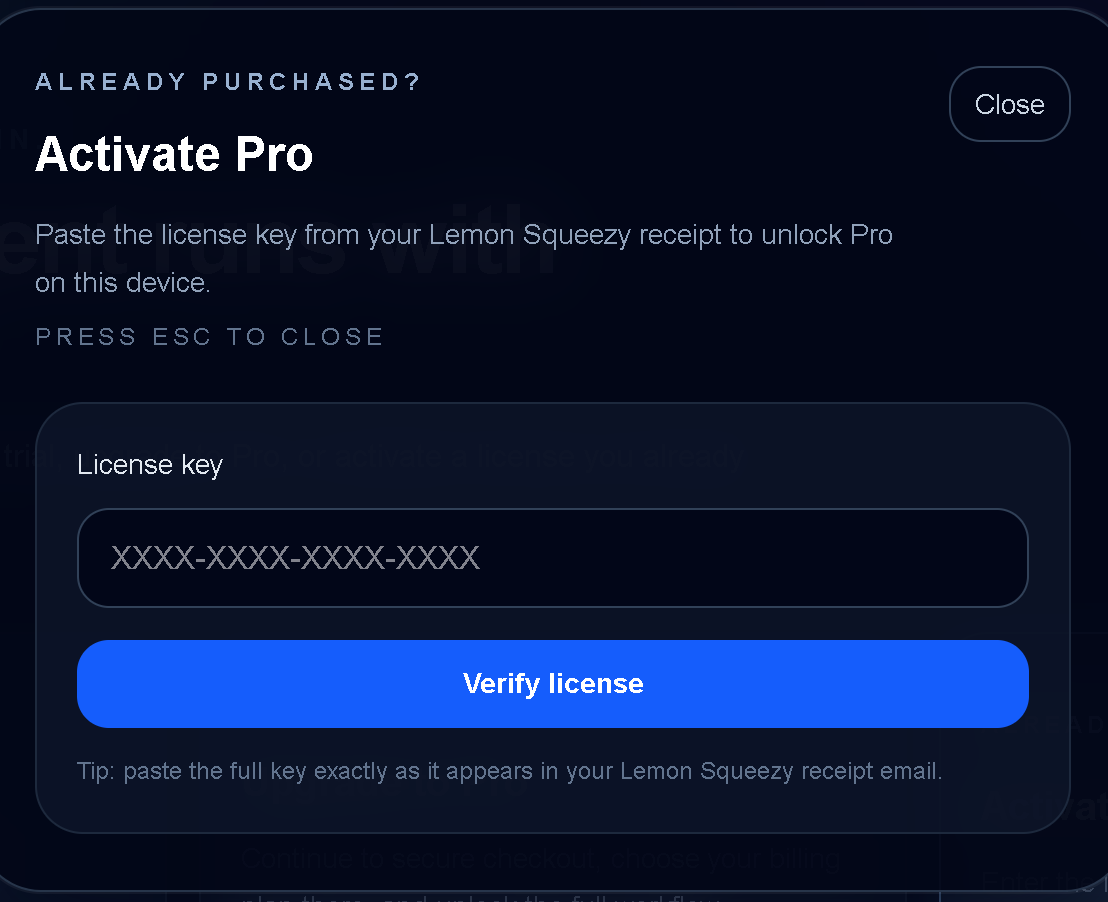
How do I activate my license?
If you already purchased Pro, choose Activate Pro in the app.
- Open TraceProbe.
- Choose Activate Pro.
- Paste your license key into the license key field.
- Click Verify license.
If the key is valid and active, TraceProbe will unlock Pro features for that machine.
What should I do if activation does not work right after purchase?
Sometimes the purchase or license status may take a short time to sync.
- Make sure the full license key was copied exactly.
- Wait a minute and try again.
- Close and reopen TraceProbe.
- Return to Activate Pro and click Verify license.
If it still fails, contact support with your purchase email, license key, and the exact error message.
Devices & Moving Licenses
Can I activate my license on another machine?
Yes, as long as your license still has an available device slot.
Pro licenses currently support activation on up to 2 devices, subject to your active license terms.
- Open TraceProbe on the new machine.
- Choose Activate Pro.
- Paste the same license key.
- Click Verify license.
How do I move my license to a new computer?
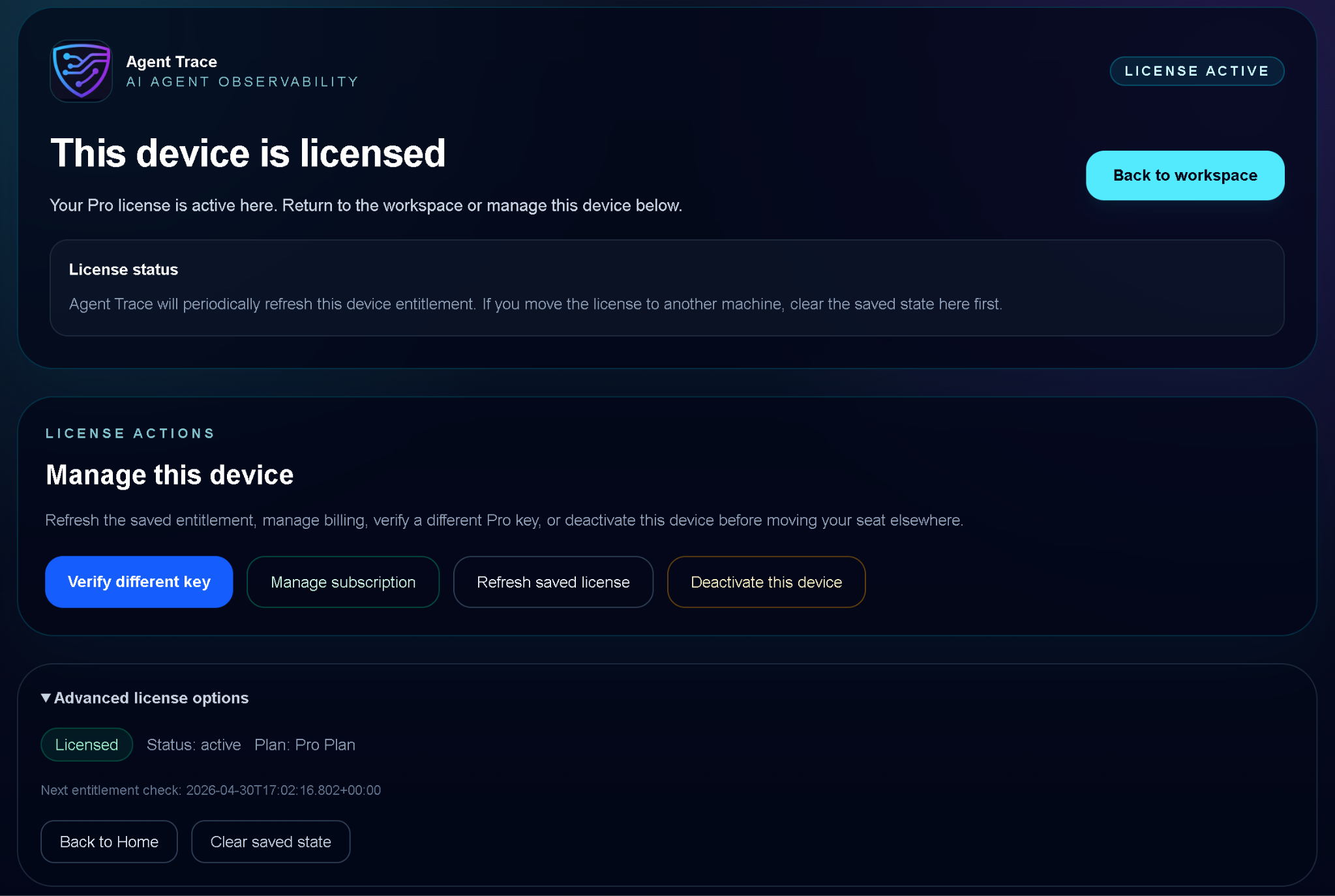
The best way is to deactivate the old device before activating the new one.
- Open TraceProbe on the old computer.
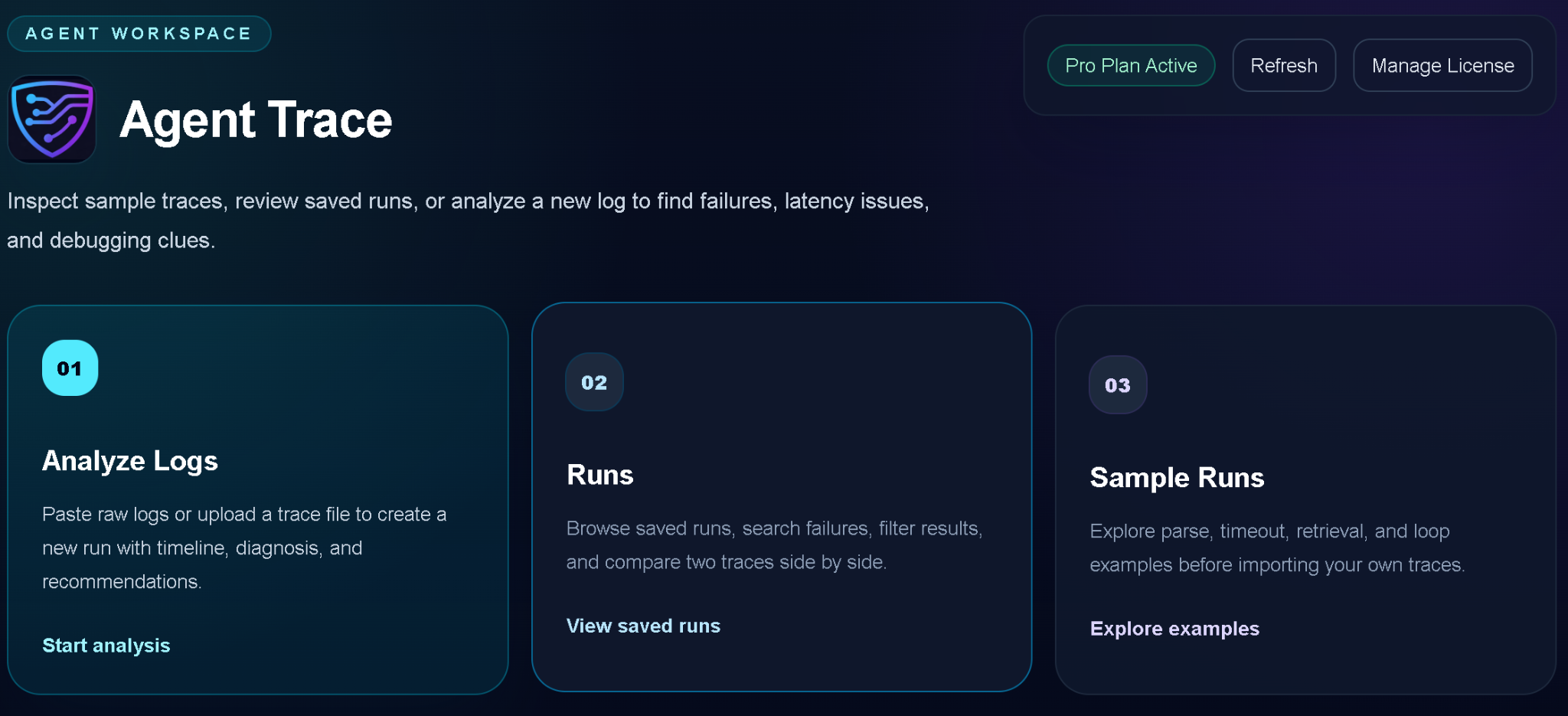
- Enter the workspace.
- Open Manage License.
- Choose Deactivate this device.
- Open TraceProbe on the new computer.
- Choose Activate Pro.
- Enter the same license key and click Verify license.
What if I no longer have access to the old computer?
If you cannot deactivate the old device yourself, contact support.
Include the email used for purchase, your license key if available, and a short explanation that you are moving to a new machine.
Why does the app say my license is already active on another device?
This usually means the device limit for that license has been reached.
- Deactivate the license on a device you no longer use.
- Then activate it on the new device.
If you no longer have access to the old device, contact support.
Billing & Subscription
Can I cancel my subscription from the app?
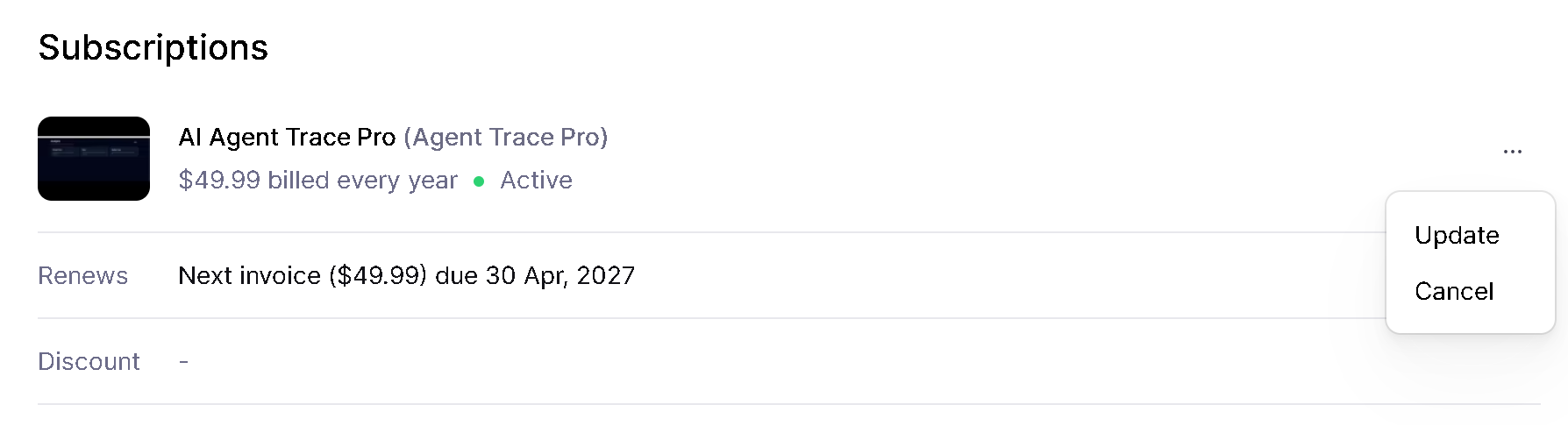
Yes. Use Manage subscription inside TraceProbe to open the Paddle billing portal.
- Enter the workspace.
- Open Manage License.
- Choose Manage subscription.
From there, you can manage billing options available through Paddle.
Can I cancel directly from Paddle instead of the app?
Yes. The app's Manage subscription button is a shortcut to the Paddle billing portal. You can also manage your subscription directly through Paddle if you already have access to the portal link or receipt flow.
If I cancel, will the app stop working immediately?
This depends on the subscription state reported by Paddle after cancellation.
In general, Pro access ends when the entitlement is no longer active, while historical runs remain available in read-only mode.
Can I switch between monthly and annual Pro?
Subscription changes are usually handled through the Paddle billing portal.
Use Manage subscription in the app to review the options available for your subscription.
Where can I review the refund policy before I purchase?
Review the current Refund Policy before completing checkout.
Troubleshooting
What does “This license exists, but it is not currently active” mean?
This usually means the license key is real, but the related subscription is no longer active.
Common reasons include:
- The subscription was canceled.
- The subscription expired.
- Payment status changed and the entitlement is no longer active.
If you believe this is a mistake, contact support with your purchase email and license key.
Why does the app say it could not find an active entitlement for my license key?
Possible reasons include:
- The license key was pasted incorrectly.
- The purchase has not finished syncing yet.
- The subscription is not active.
Try this first:
- Make sure the full key was copied exactly.
- Wait a minute and try again.
- Reopen the app and retry activation.
I upgraded, but the app still looks like trial or free mode. What should I do?
- Reopen TraceProbe.
- Choose Activate Pro.
- Re-enter the license key if needed.
- Click Verify license.
- Confirm the plan now shows as Monthly Pro or Annual Pro.
If it still does not update, contact support with your purchase email, license key, and a screenshot of the license page if possible.
Can I use the same purchase email with multiple licenses?
Yes. Each license key is its own activation credential. If you have multiple purchases, make sure you are activating the specific key you want to use.
Contact TraceProbe support
If the FAQ did not solve your issue, send us the details and we’ll help troubleshoot activation, subscription, device, or access problems.
To help us respond faster, please include:
- Your purchase email
- Your license key, if available
- The exact error message shown in the app
- Whether the issue is related to trial, activation, billing, moving devices, or analysis
- A screenshot, if it helps explain the issue